🔍 How to Detect If Someone Is Stealing Your Wi-Fi
Feeling your internet drag? Unexplained data drains? You might have an unwanted guest on your network. This guide will help you spot a Wi-Fi thief and secure your connection for good—tailored for users in the Philippines and Bangladesh.
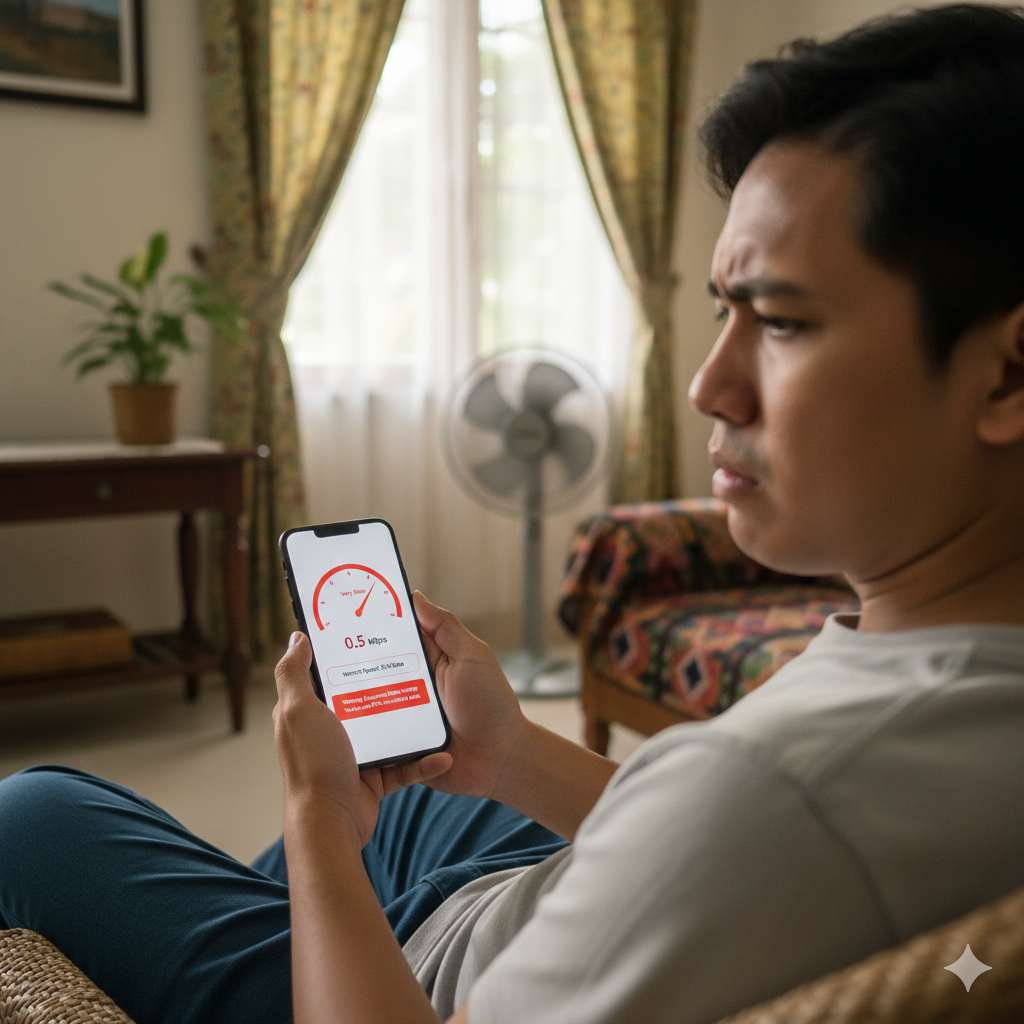
🚨 Quick Signs Your Wi-Fi Might Be Hacked
🗺️ Your Action Plan: Find & Fix Wi-Fi Theft
Follow this roadmap from detection to complete security:
🔎 Detection Phase
- Method 1 - Router Admin: Check the "Connected Devices" list in your router settings (most reliable method).
- Method 2 - Use an App: Scan your network with the free Fing Network Scanner app for quick results.
- Method 3 - Spot Behavioral Clues: Monitor for consistent slowdowns and unknown hotspot names.
✅ Immediate Action Required
- Found an unknown device? Immediately change your Wi-Fi password to kick everyone off.
- No unknown devices? Still proceed to secure your network proactively.
🛡️ Advanced Lockdown Steps
- Enable WPA3/WPA2 Encryption to scramble your network data.
- Set up MAC Address Filtering to only allow your specific devices.
- Update Your Router Firmware to patch security holes.
🛠️ Method 1: The Router Admin Check (Most Reliable)
Your router's admin page holds the truth. Look for a list named "Connected Devices," "DHCP Client List," or "Wireless Status."
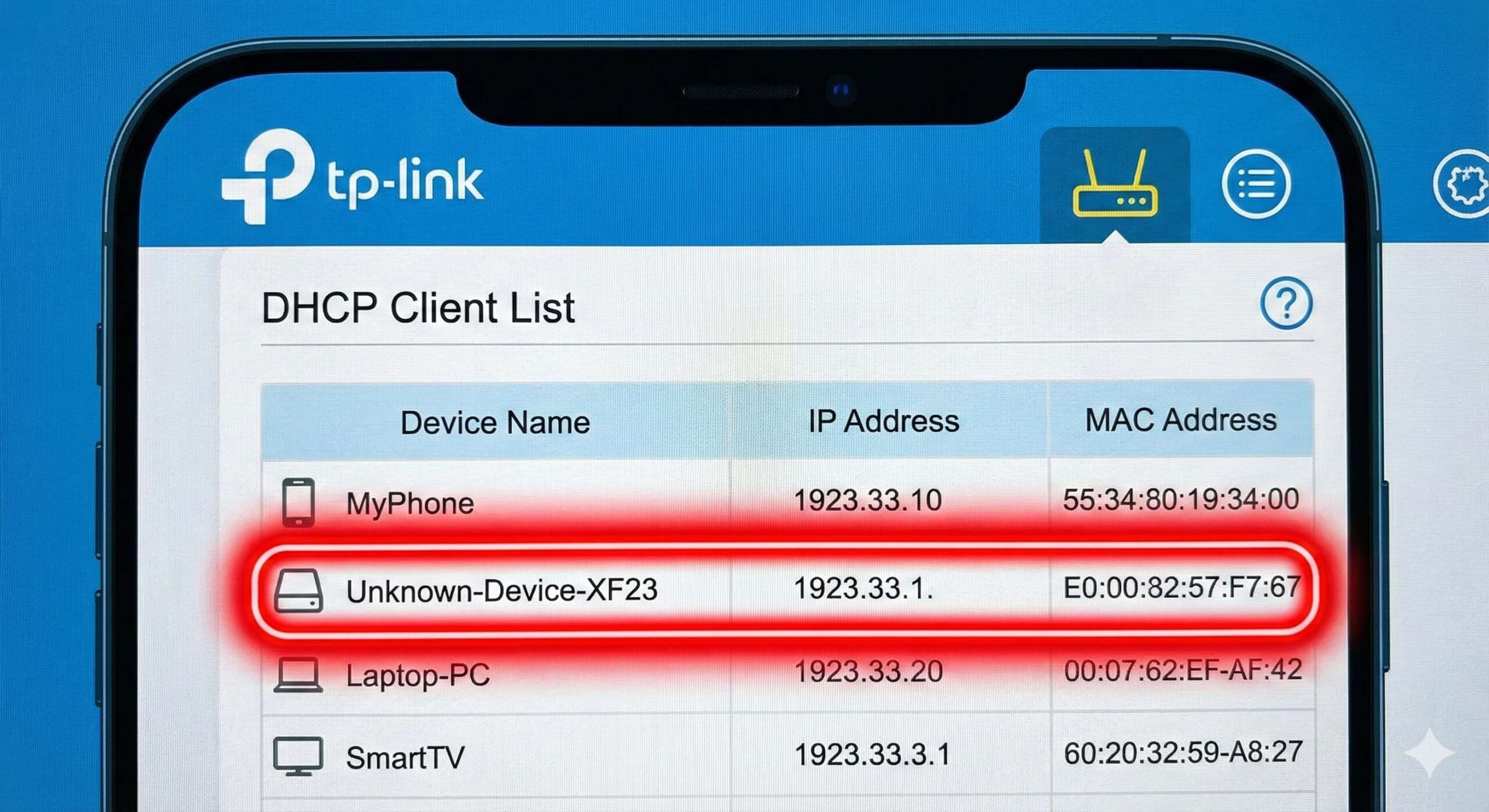
- Find Your Router's IP Address (Commonly
192.168.0.1or192.168.1.1). - Log In using default credentials (often admin/admin - check your router's label).
- Find the "Connected Devices" List in the wireless or status section.
- Identify & Block any unknown device immediately using the options provided.
🛡️ Your 5-Point Security Shield
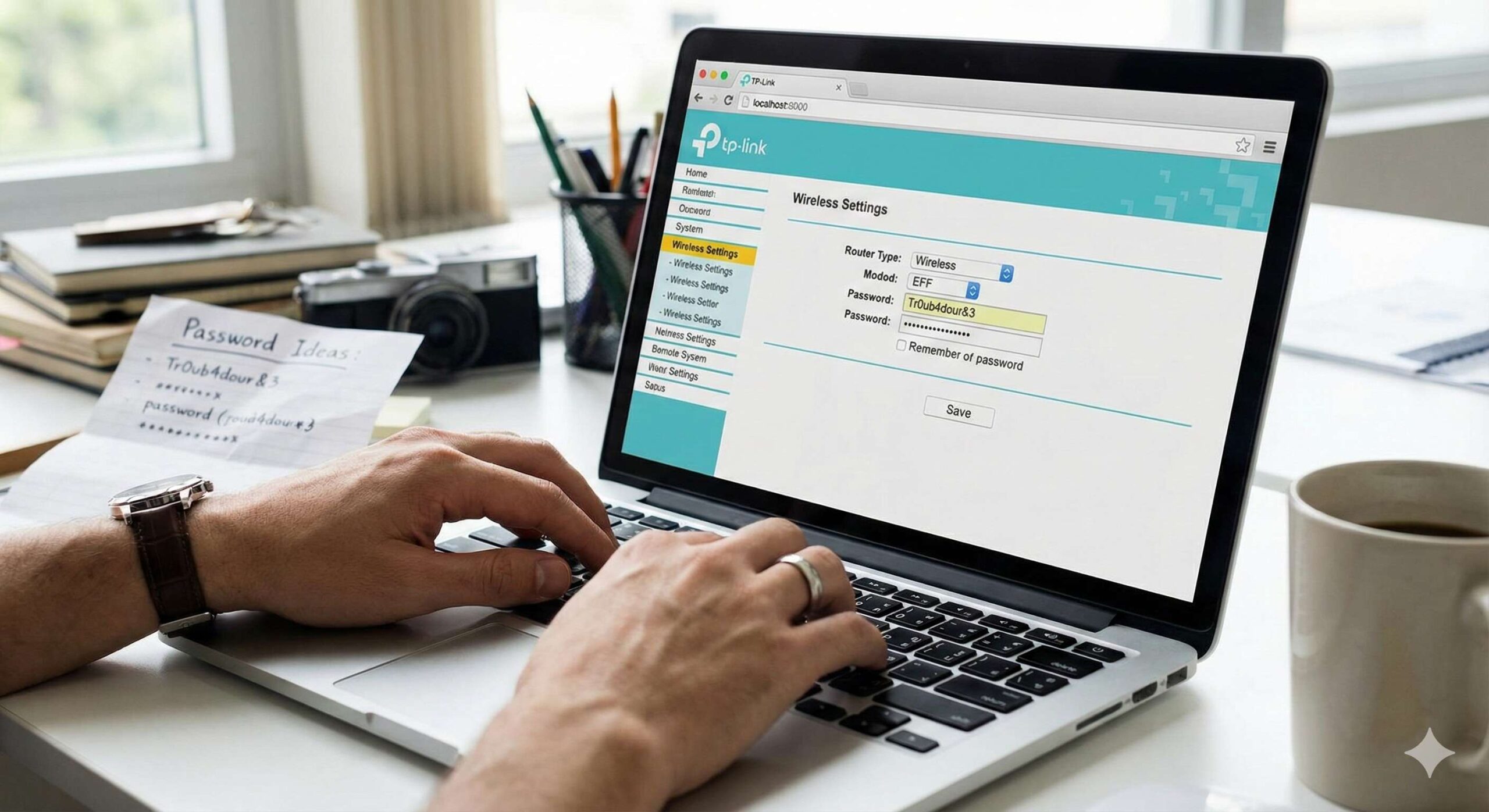
Once you've detected a problem, build this unbreakable shield. Your first and most crucial step is shown below:
| Step | Action | Why It Works |
|---|---|---|
| 1️⃣ | Change Wi-Fi Password | Immediately kicks all unauthorized devices off your network. |
| 2️⃣ | Enable WPA2/WPA3 Encryption | Scrambles data sent over your network, making it unreadable. |
| 3️⃣ | Hide Your Network (SSID) | Makes your Wi-Fi name invisible to casual scanners. |
| 4️⃣ | Filter MAC Addresses | Creates a whitelist, allowing only your specific devices to connect. |
| 5️⃣ | Update Router Firmware | Patches security vulnerabilities that hackers exploit. |
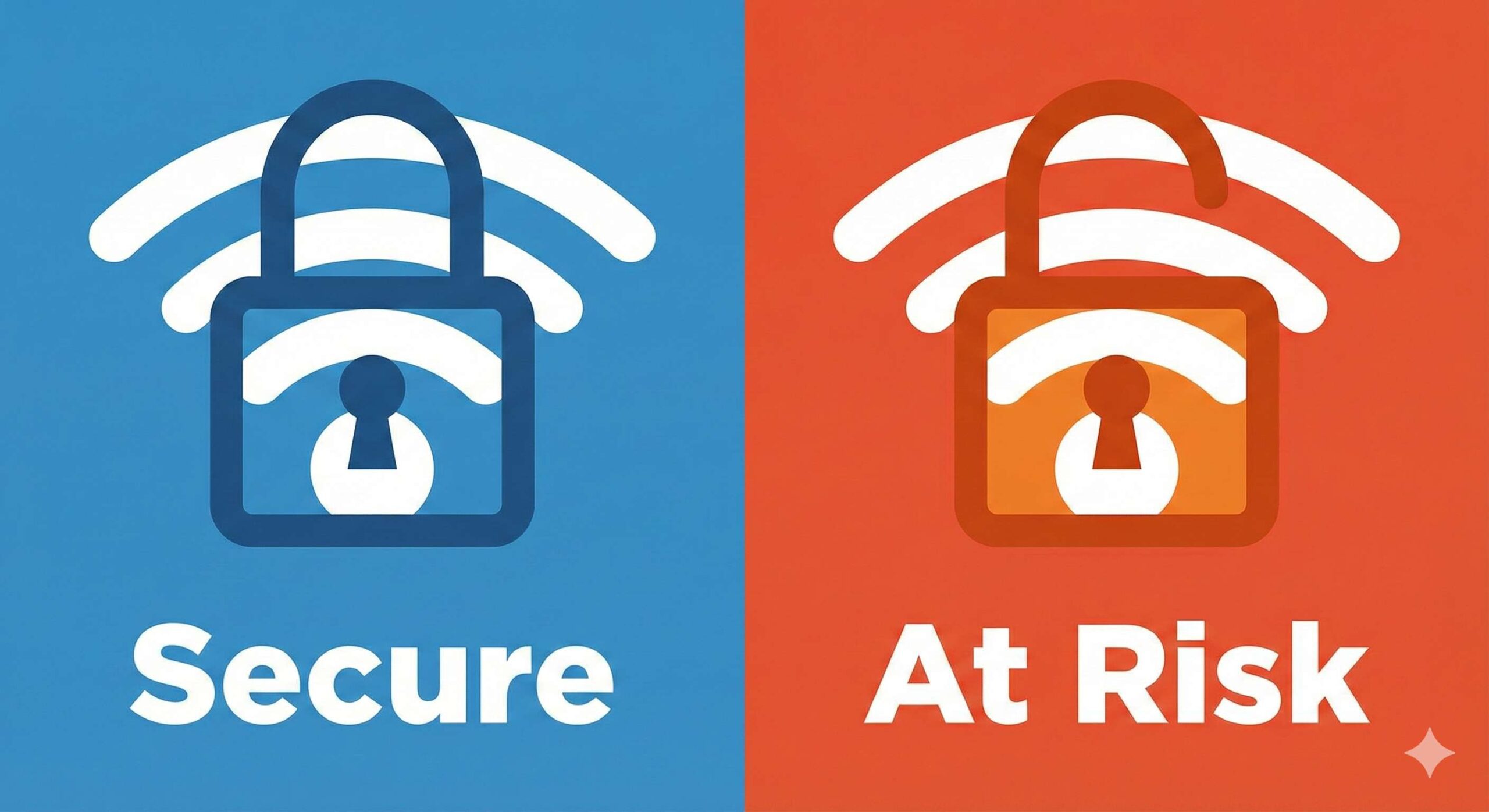
📋 Your Quick Security Checklist
❓ Frequently Asked Questions
Q: Can someone use my Wi-Fi during a power cut (load-shedding)?
A: No. If your router has no power, your Wi-Fi network is completely off and inaccessible to anyone.
Q: I forgot my router login password. What now?
A: Perform a factory reset. Press the small reset button on the router for about 10 seconds. You'll then need to reconfigure your internet from scratch (have your ISP details ready).
Q: Does a Wi-Fi thief increase my electricity bill?
A: Not at all. They only steal your internet bandwidth, not your home's electricity.
Q: Is using an open neighbor's Wi-Fi illegal?
A: Yes. Accessing any network without explicit permission is unauthorized access and is illegal in most countries, including the Philippines and Bangladesh.
✨ Final Thought
Taking 10 minutes to secure your Wi-Fi protects your privacy, your data, and your internet speed. Make it a habit to check your connected devices list every few months.
Stay secure and surf smart! For more practical tech guides and solutions, explore quicktechsolve.com.
Disclaimer: The guides and information on QuickTechSolve.com are for educational purposes only. Follow them at your own risk. Always back up your data and comply with local laws and your ISP/device policies. QuickTechSolve.com is not responsible for any damage or data loss resulting from the use of this content.