

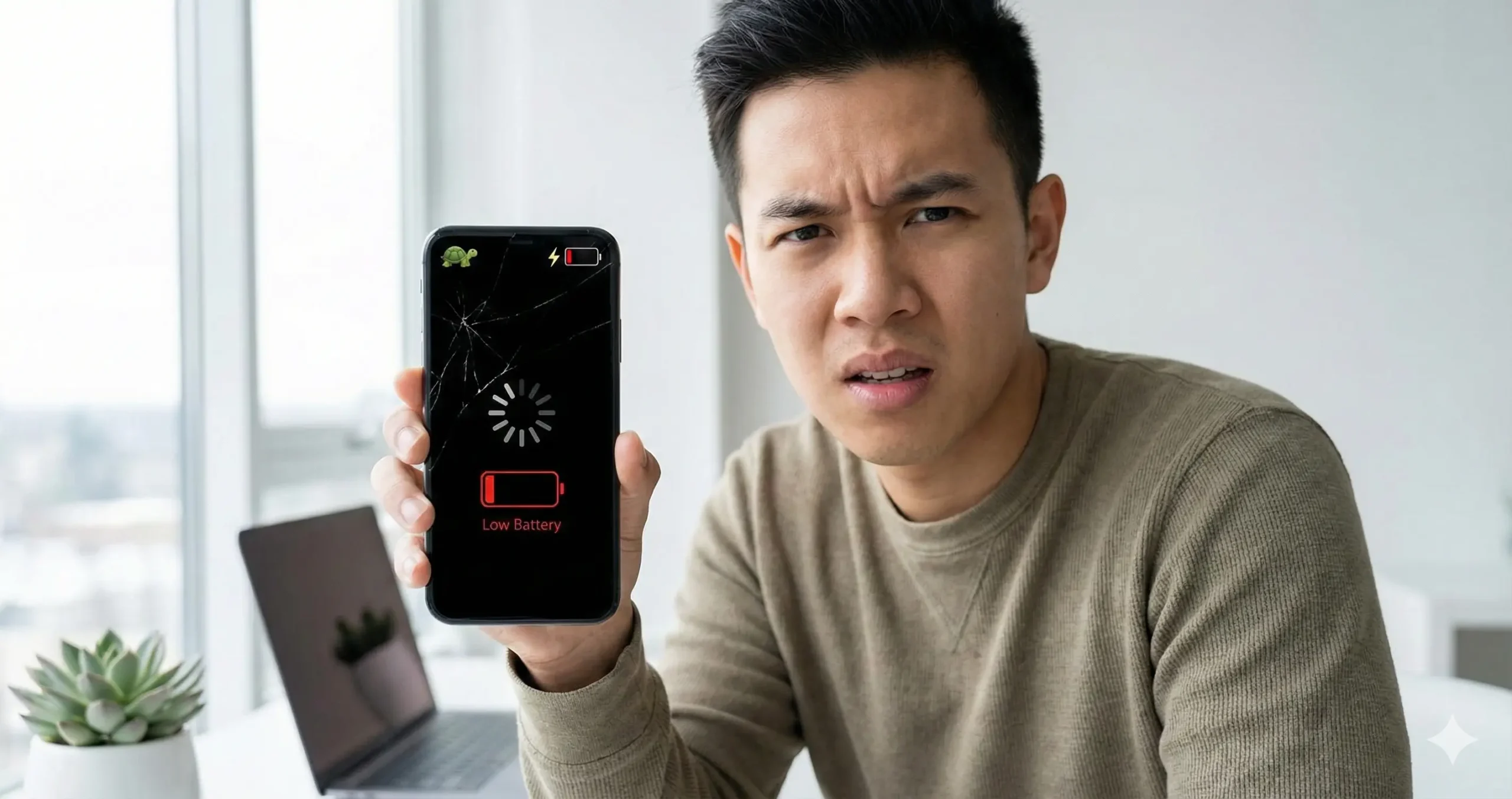

Android Phone Slow After Update – Fix It
You’re not imagining it.
Your Android phone really did become slower after the update.
One day it felt smooth, fast, and responsive. Then you installed a system update—and suddenly everything feels off.
Apps take longer to open. Scrolling isn’t smooth anymore. The battery drains faster, and sometimes the phone even heats up without any clear reason.
If this sounds familiar, you’re not alone. This happens to millions of Android users after system updates.
The good news? In most cases, the problem can be fixed without buying a new phone.
Why Android Phones Get Slow After an Update
Android updates are not designed to slow your phone on purpose.
1. Background Optimization Takes Time
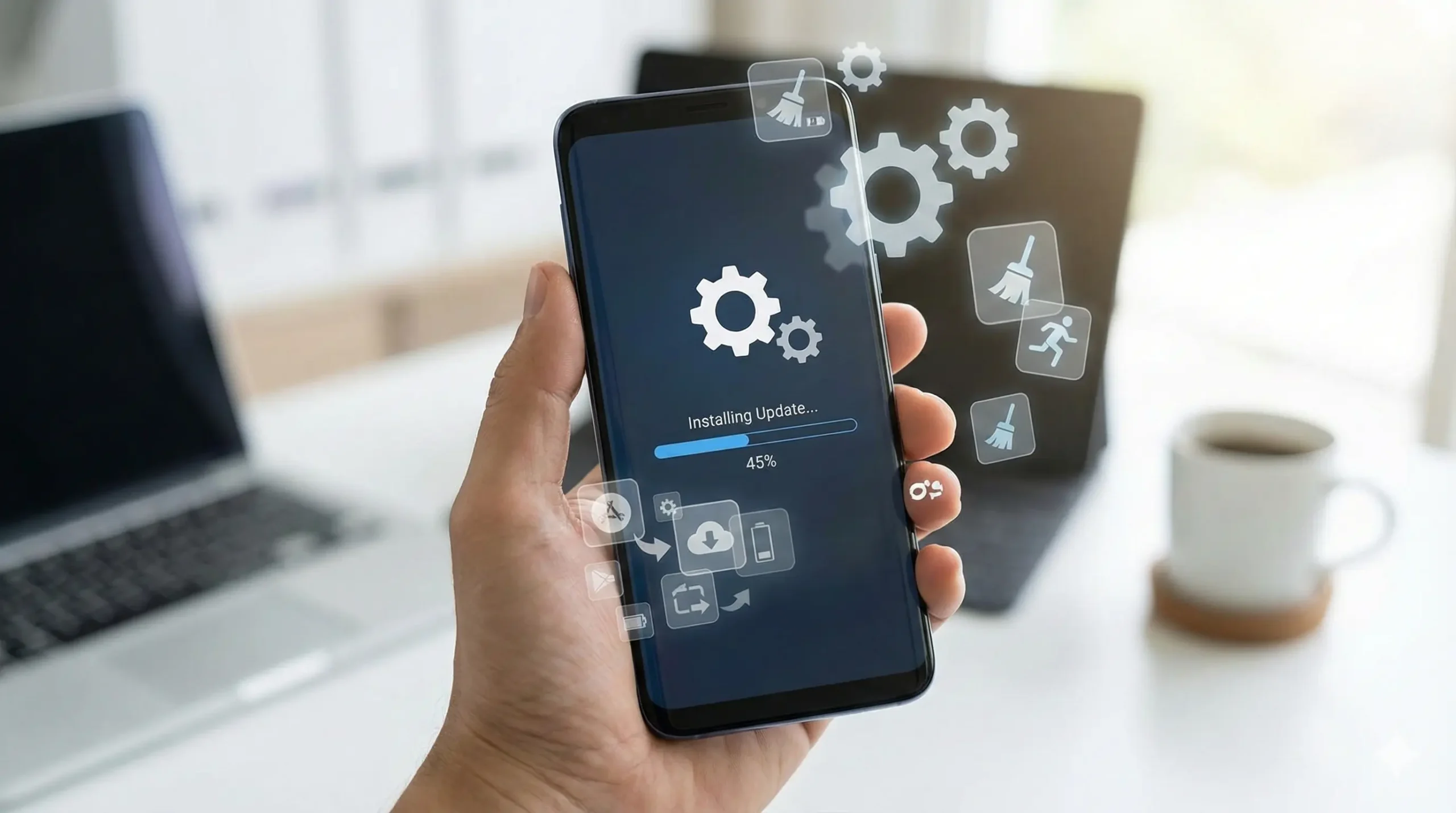
After a system update, Android re-optimizes apps in the background.
This can take a few days, especially on older or mid-range phones.
2. Apps Are Not Optimized Yet
Some apps are not immediately compatible with the new Android version.
This causes lag, crashes, or battery drain.
3. Increased System Requirements
New Android versions need more RAM and processing power.
Older phones may struggle.
4. Cache Conflicts
Old cache files can conflict with new system files.
First Thing to Do: Be Patient
After updating, wait at least 48–72 hours.
Many phones fix themselves once background tasks finish.
Fix 1: Restart Your Phone
Do a full restart.
This clears temporary memory and refreshes the system.
Fix 2: Clear App Cache
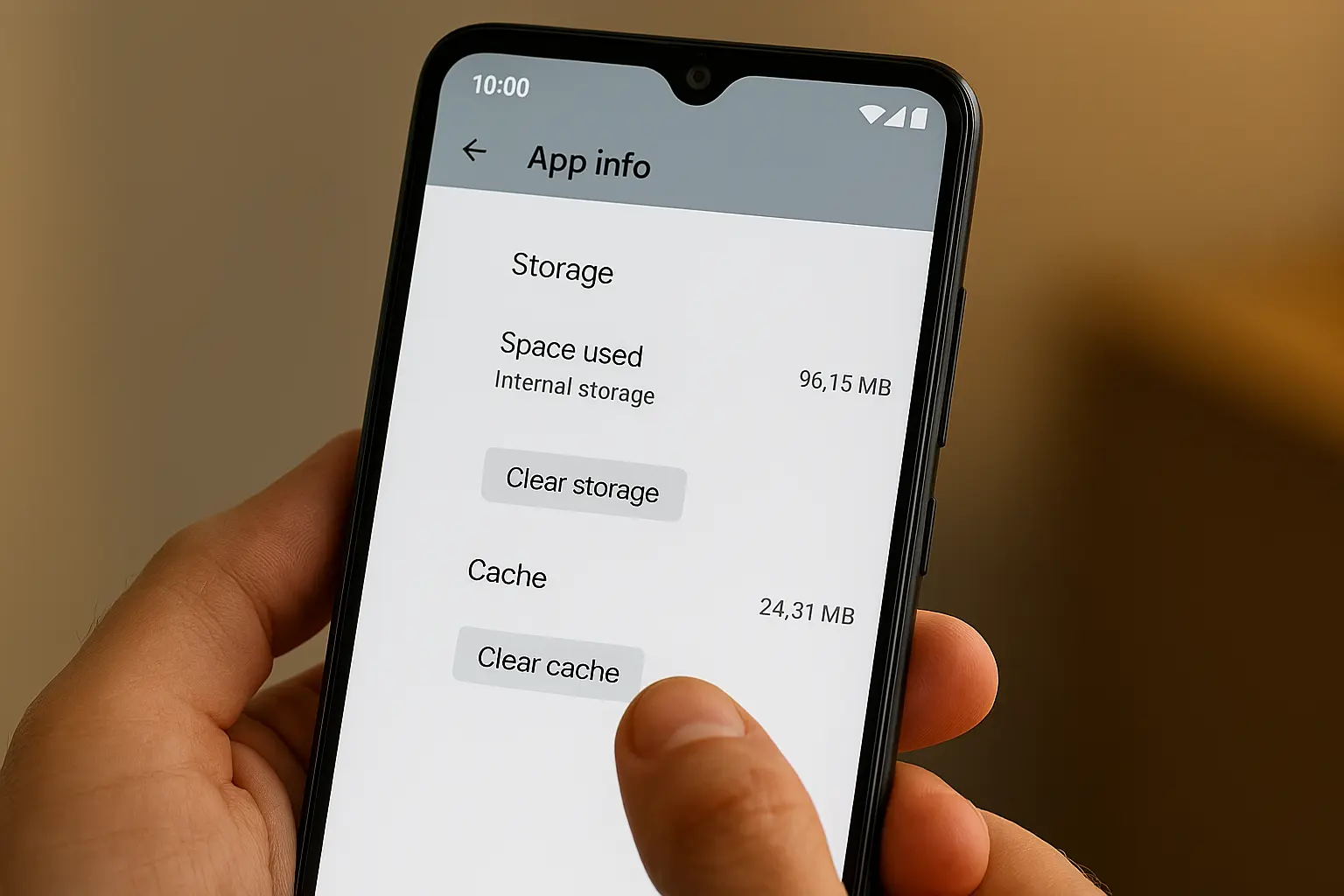
- Settings → Apps
- Select an app
- Storage → Clear Cache
This does not delete personal data.
Fix 3: Update All Apps
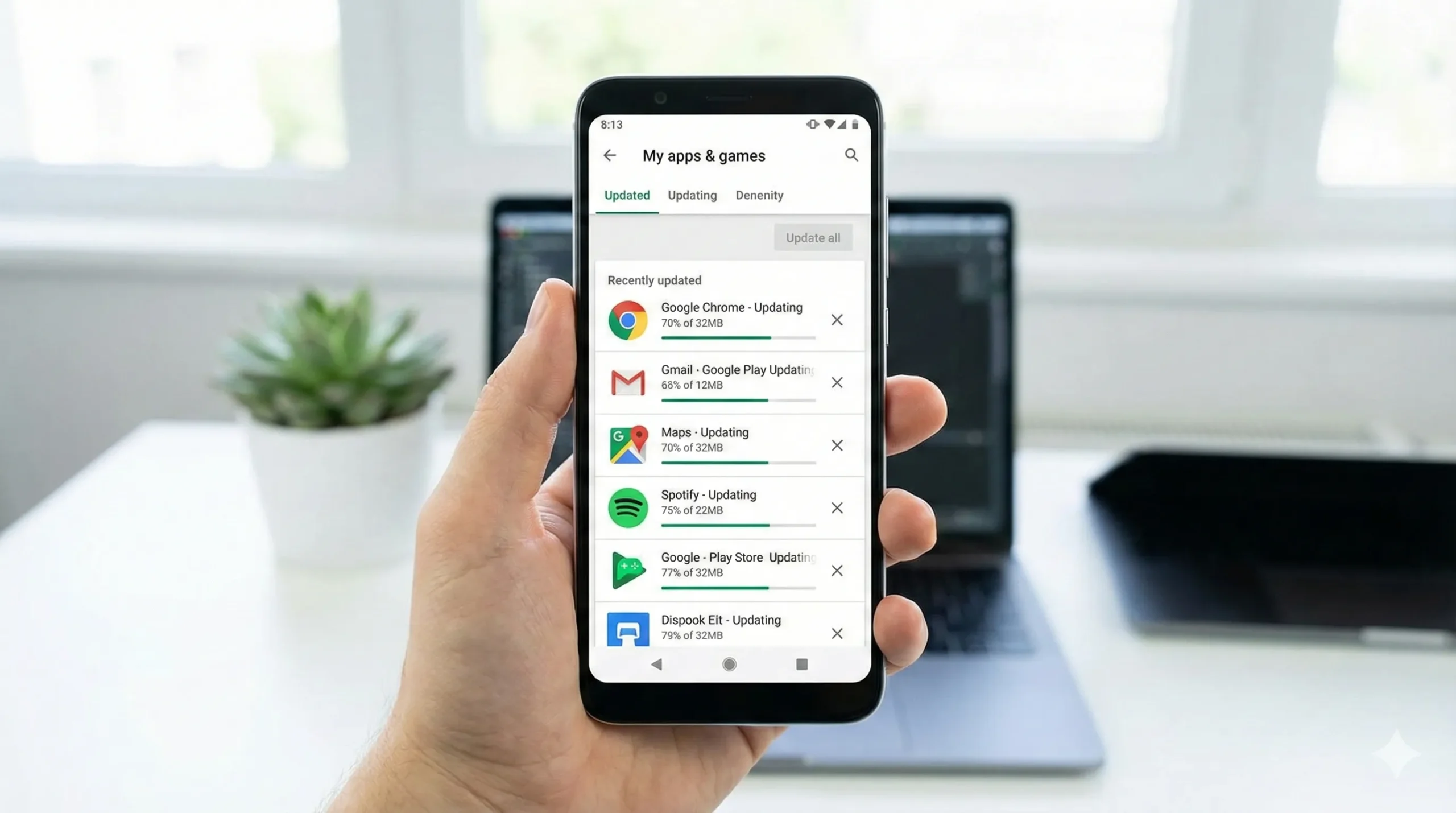
App updates often fix performance issues.
Update all apps from the Play Store.
Fix 4: Reduce Animations
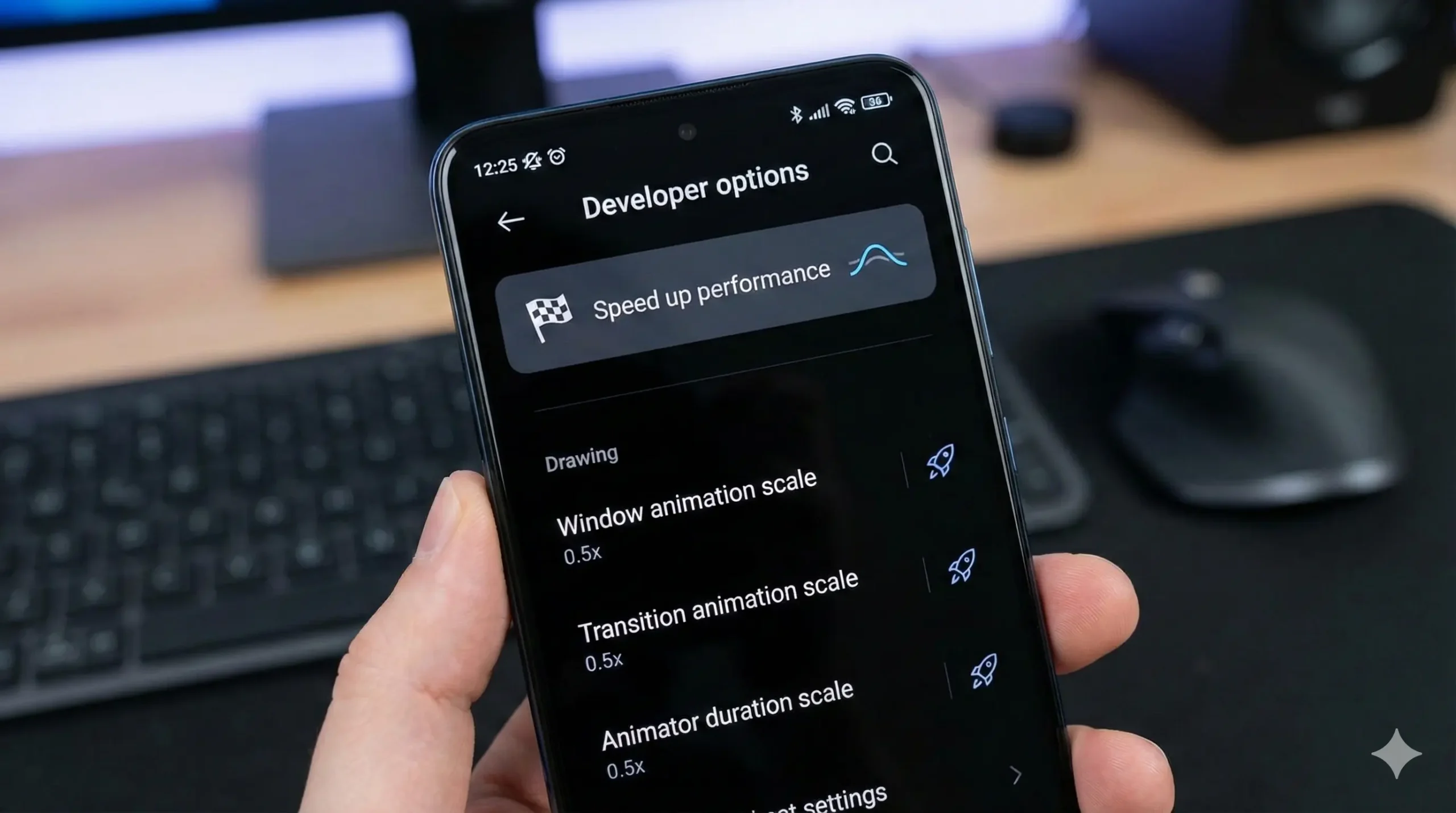
Reducing animations makes your phone feel faster instantly.
Fix 5: Check Battery Usage
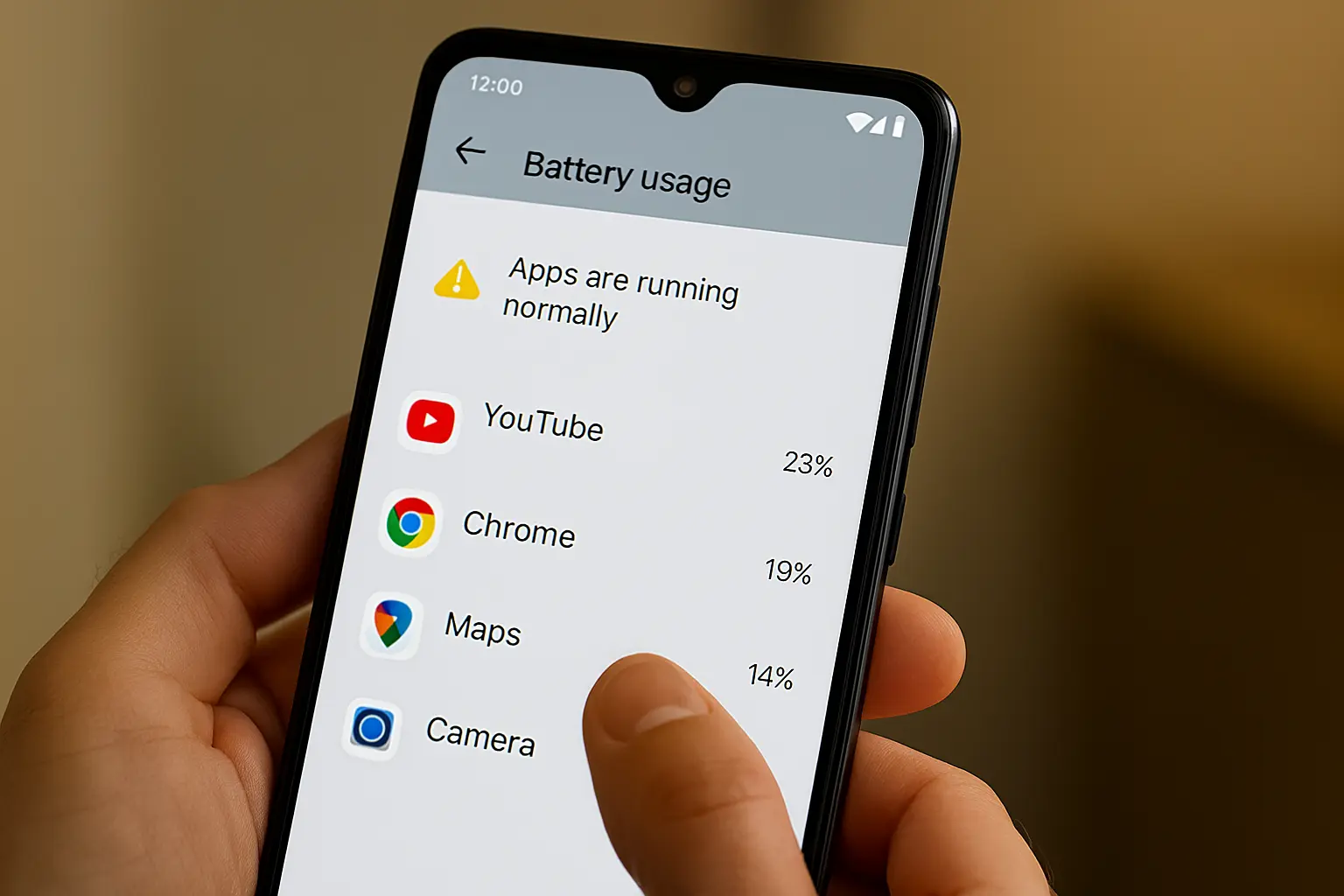
Look for apps consuming excessive power.
Update or uninstall them.
Fix 6: Free Up Storage
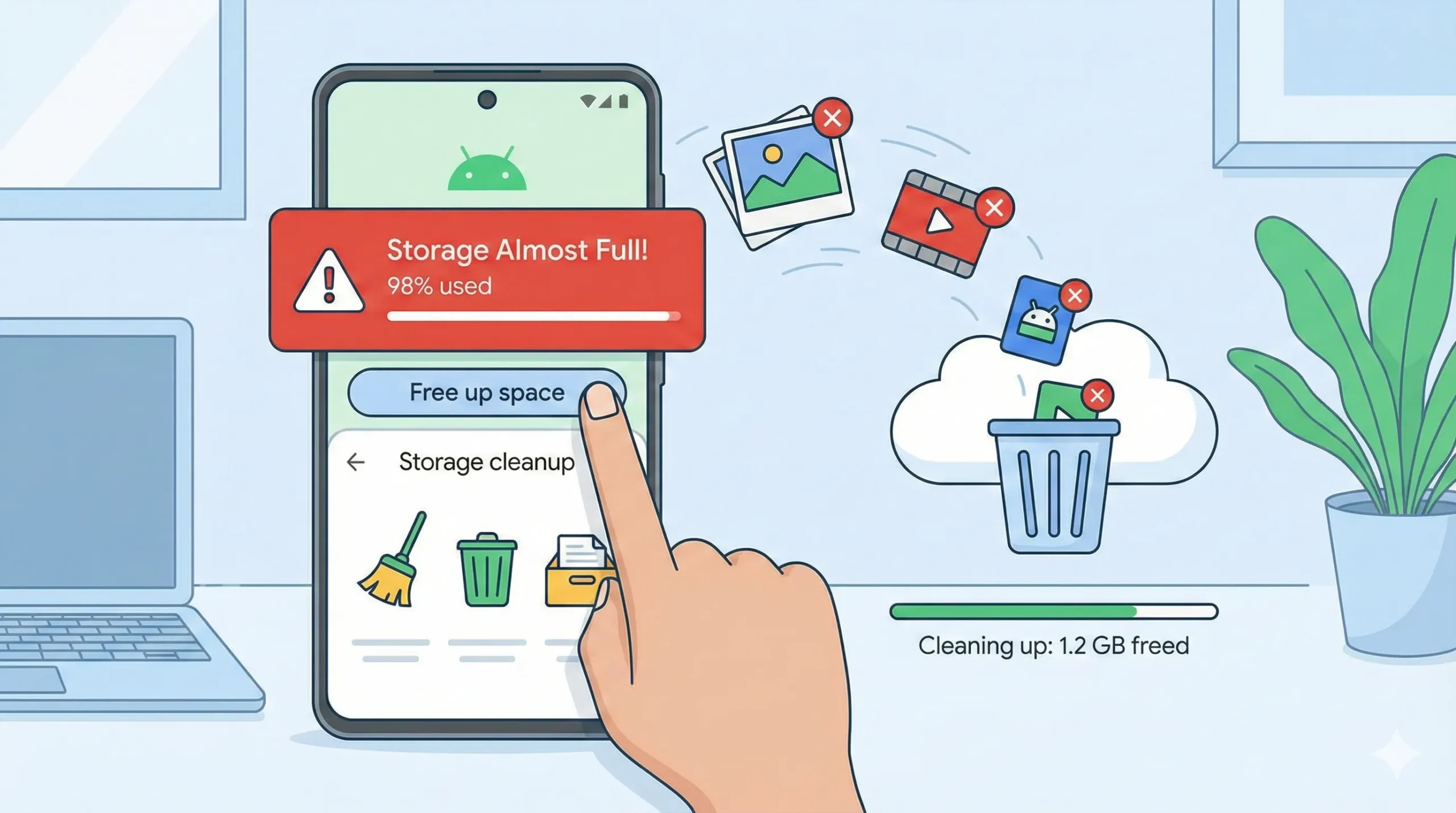
Keep at least 20% storage free for smooth performance.
Last Option: Factory Reset
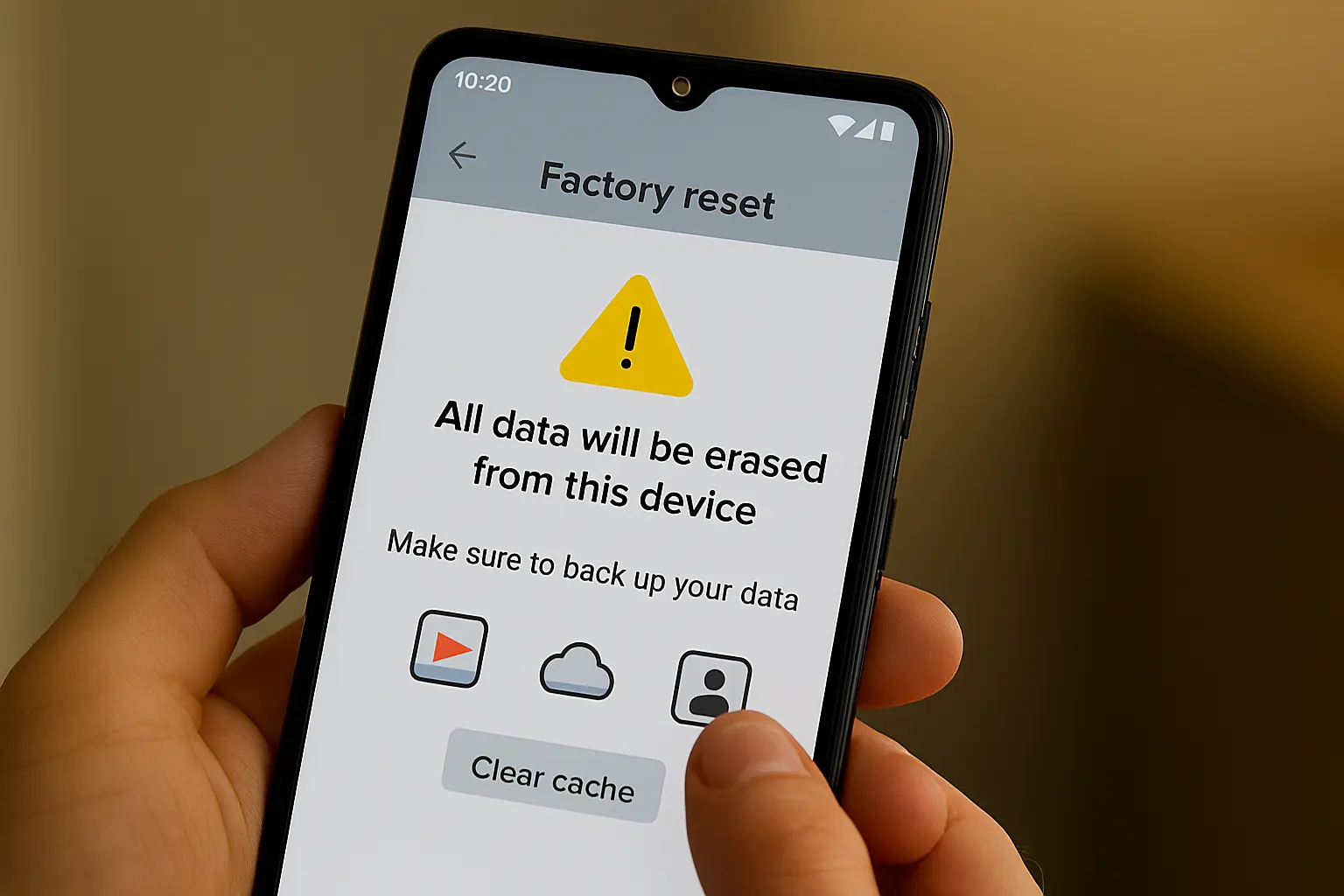
Reset only if nothing else works.
Always back up your data first.
Final Thoughts
Slowdowns after updates are frustrating—but usually temporary.
Most users recover up to 90% performance.
Sometimes your phone just needs a little help adjusting.