10 Reasons Your Internet Is Slow & How to Fix It

Buffering videos, slow downloads, laggy video calls – slow internet is the modern-day equivalent of watching paint dry. Before you call your ISP and pay for a more expensive plan, check these 10 common culprits. I've helped hundreds of clients speed up their internet, and 80% of the time, the solution doesn't require spending more money.
- Download Speed: (Should be close to your plan's advertised speed)
- Upload Speed: (Often 10-20% of download speed)
- Ping/Latency: (Should be under 50ms for smooth gaming/video calls)
The 10 Reasons Your Internet Is Slow (And How to Fix Each)
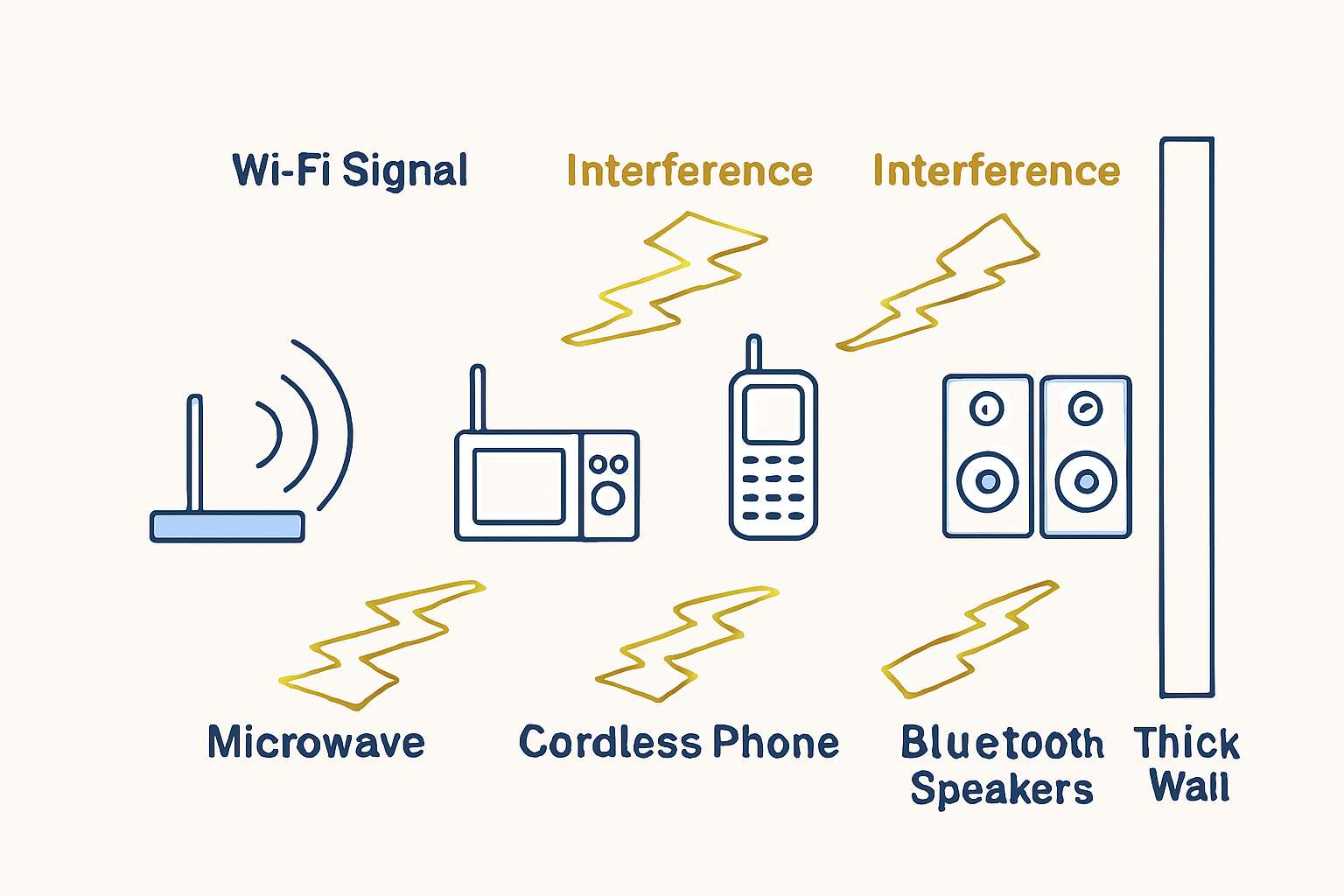
The Problem: Your Wi-Fi signal is competing with other electronic devices. Microwaves, cordless phones, Bluetooth speakers, and even your neighbor's Wi-Fi can interfere with your signal.
How to Fix:
- Change Wi-Fi Channel: Log into router (192.168.1.1) → Wireless Settings → Choose channels 1, 6, or 11 for 2.4GHz
- Use 5GHz Band: If your router supports it, connect to the 5GHz network (faster, less interference)
- Reposition Router: Place centrally, elevated, away from metal objects and appliances
- Use Wi-Fi Analyzer App: See which channels are congested
The Problem: Your router is more than 3-4 years old. Technology advances fast – newer routers support faster standards (Wi-Fi 6/6E) and handle more devices simultaneously.
How to Fix:
- Update Firmware: Router settings → Administration → Firmware Update
- Check Router Age: If older than 2018, consider upgrading to Wi-Fi 6 router
- ISP Router: ISP-provided routers are often basic. Consider buying your own
- Minimum Standard: Look for 802.11ac (Wi-Fi 5) or 802.11ax (Wi-Fi 6)
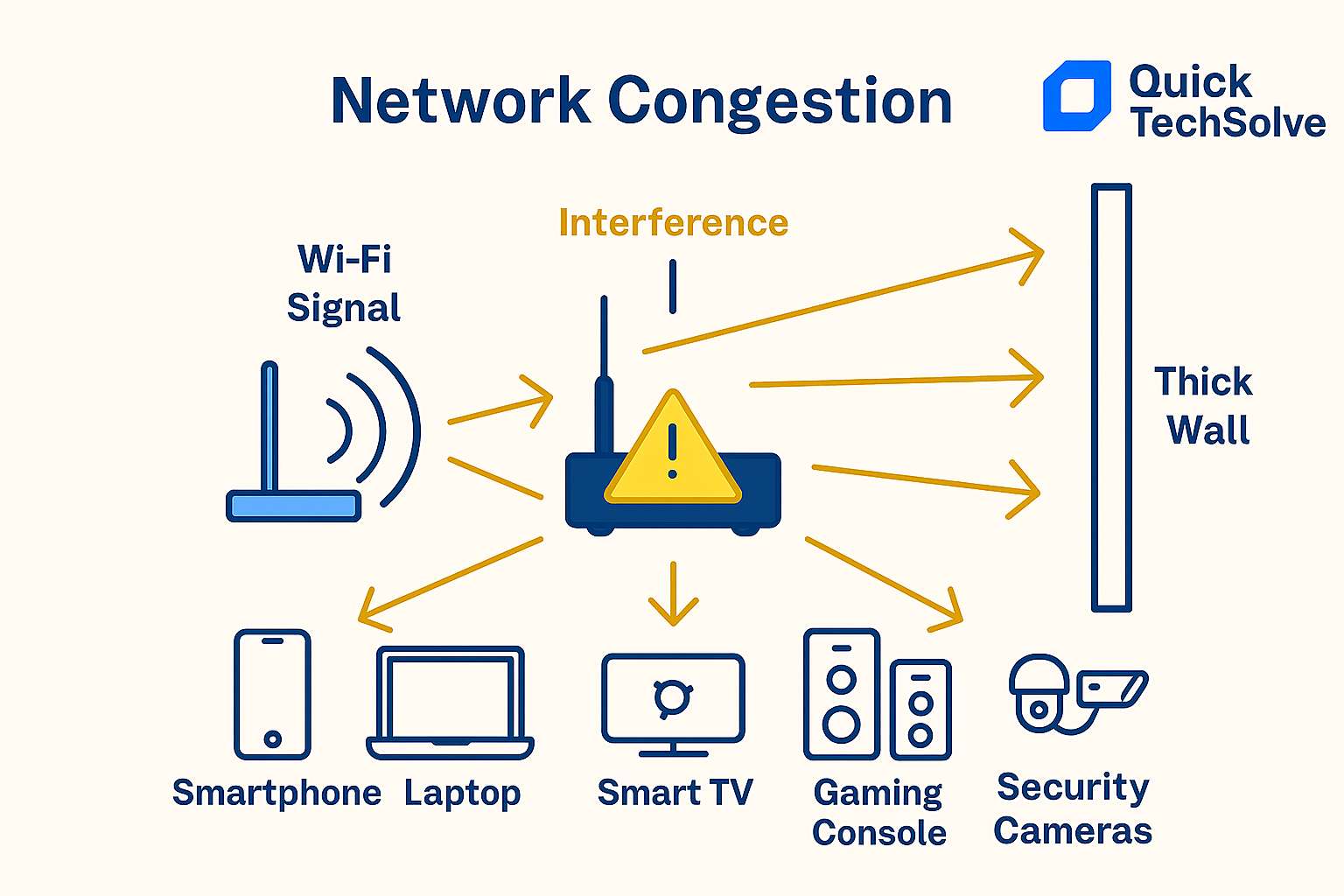
The Problem: The average home has 10+ connected devices. Each device shares your total bandwidth. 4K streaming uses 25 Mbps, gaming uses 3-6 Mbps, video calls use 1-4 Mbps.
How to Fix:
- Disconnect Unused Devices: Check router admin page for connected devices
- Set Priorities (QoS): Router settings → QoS → Prioritize work/gaming devices
- Schedule Downloads: Set large downloads for nighttime
- Use Ethernet: Connect gaming consoles, TVs, computers via Ethernet cable
The Problem: Your Internet Service Provider intentionally slows certain types of traffic (like video streaming) or during peak hours (7-11 PM).
How to Fix:
- Test at Different Times: Compare speed at 3 AM vs 8 PM
- Use VPN: Encrypts traffic so ISP can't see what you're doing
- Check ISP Terms: Look for "data caps" or "network management" policies
- Contact ISP: Ask about "network congestion" in your area
The Problem: Your ISP's DNS servers are slow or overloaded. DNS translates website names (google.com) to IP addresses. Slow DNS = slow website loading.
How to Fix:
- Change DNS Servers: Use Google (8.8.8.8, 8.8.4.4) or Cloudflare (1.1.1.1)
- Router Level: Change in router settings for all devices
- Device Level: Change on individual computers/phones
- Flush DNS Cache: On Windows: Command Prompt → "ipconfig /flushdns"
The Problem: Your devices are secretly using bandwidth for updates, cloud backups, sync services, or malware.
How to Fix:
- Check Task Manager (Windows) or Activity Monitor (Mac) for network usage
- Disable Automatic Updates: Schedule for off-peak hours
- Stop Cloud Backups: Pause OneDrive, Google Drive, iCloud sync
- Scan for Malware: Malware often uses bandwidth in background
The Problem: Damaged Ethernet cables, old network cards, or outdated modem can bottleneck your speed.
How to Fix:
- Check Ethernet Cables: Use Cat 6 or Cat 6a cables (not Cat 5)
- Update Network Drivers: Device Manager → Network Adapters → Update Driver
- Modem Compatibility: Ensure modem supports your internet speed tier
- Test Direct Connection: Connect computer directly to modem via Ethernet
The Problem: The website or service you're trying to access is slow on their end. Your internet is fine for other sites.
How to Diagnose:
- Test Multiple Sites: If only one site is slow, problem is on their end
- Check DownDetector: See if others report issues with same service
- Use Different Browser: Eliminate browser-specific issues
- Clear Browser Cache: Ctrl+Shift+Delete to clear cached files
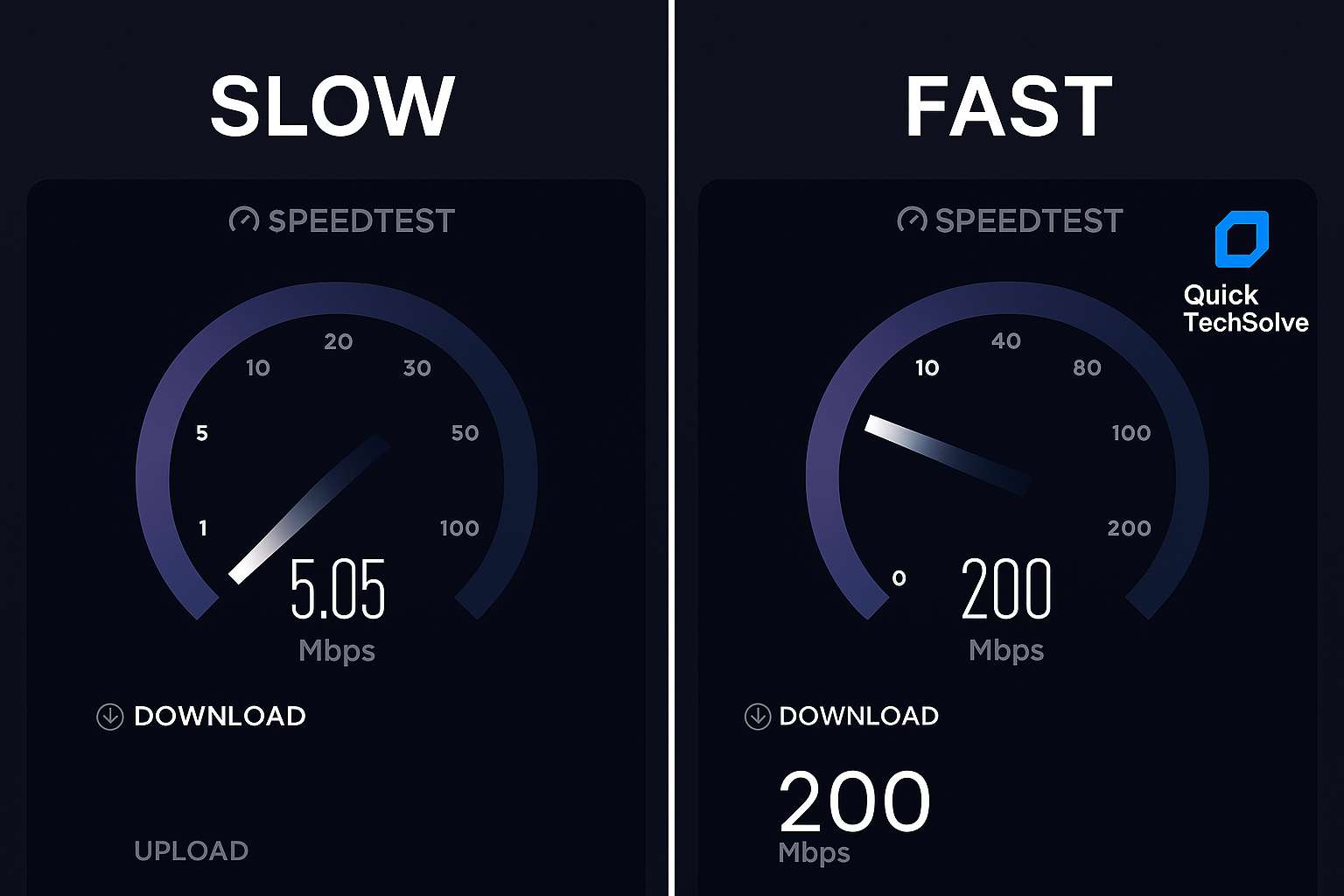
The Problem: Wi-Fi signal strength decreases with distance and obstacles. Each wall reduces signal by 25-50%.
How to Fix:
- Use Wi-Fi Extender: Place halfway between router and dead zone
- Mesh Wi-Fi System: Multiple access points for whole-home coverage
- Powerline Adapters: Use electrical wiring to extend network
- Reposition Antennas: Vertical for single-story, angled for multi-story
The Problem: You're paying for 50 Mbps but trying to stream 4K on 3 TVs while gaming and video conferencing.
Speed Requirements:
- Basic browsing/email: 5-10 Mbps
- HD Streaming (Netflix): 5 Mbps per stream
- 4K Streaming: 25 Mbps per stream
- Online Gaming: 3-6 Mbps + low ping
- Video Calls (Zoom): 1-4 Mbps
- Smart Home: Add 5-10 Mbps for 20+ devices
Calculate: Add up all simultaneous activities + 20% overhead = Minimum speed needed.
Systematic Approach: Fix Slow Internet Step-by-Step
- Test Speed at Speedtest.net (establish baseline)
- Restart Router & Modem (unplug 30 seconds, replug)
- Connect via Ethernet to test if problem is Wi-Fi specific
- Check for Interference and change Wi-Fi channel
- Update Everything – router firmware, network drivers
- Change DNS Servers to Google or Cloudflare
- Check Connected Devices and disconnect unused ones
- Scan for Malware on all devices
- Contact ISP if all else fails
- Consider Hardware Upgrade (router/modem)
When to Actually Call Your ISP
Call your Internet Service Provider when:
- Speed is consistently less than 80% of advertised speed
- Problem persists on wired connection (not just Wi-Fi)
- Multiple neighbors with same ISP have same issue
- Line noise on phone (for DSL) or signal issues (for cable)
- You've tried all fixes in this guide
Frequently Asked Questions
Prevention & Regular Maintenance
Monthly Checklist to Keep Internet Fast:
- ✅ Restart router once a month
- ✅ Check for firmware updates quarterly
- ✅ Review connected devices and remove unknown ones
- ✅ Run speed test at different times of day
- ✅ Clear browser cache monthly
- ✅ Check cables and connections for damage
Still Have Slow Internet?
If you've tried everything and your internet is still slow, contact our tech community with your speed test results and what you've tried. We'll help diagnose your specific situation.
Related networking guides:
• Wi-Fi Keeps Disconnecting? 12 Permanent Fixes
• How to Boost Wi-Fi Signal in Every Room
• Best Router 2024: Buying Guide & Reviews
You Might Also Like
Final Thoughts
Slow internet is usually fixable without upgrading your plan or buying expensive equipment. The key is systematic troubleshooting:
- Diagnose first (speed tests, wired vs wireless)
- Start simple (restart equipment, check for interference)
- Progress to advanced (DNS, firmware, hardware)
- Document everything for ISP calls if needed
Remember: Internet speed naturally fluctuates. What matters is consistent performance for your needs. Don't chase maximum speed – chase reliable speed.
Got your internet back to speed? Consider setting up network monitoring to catch issues before they become problems. Happy browsing! 🚀