

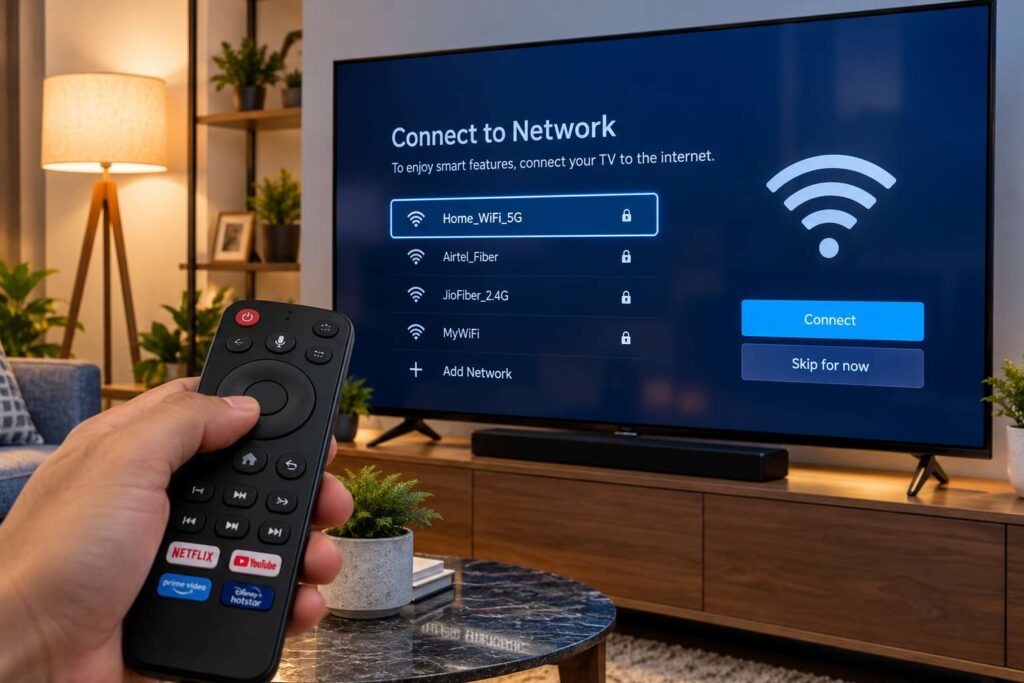

You sit down on your couch, turn on your television to watch a movie, and are greeted by a loading wheel. When you check your settings, your Smart TV displays "Connected, no internet", or worse, tells you that "Wi-Fi is turned off" and refuses to detect your home network.
Meanwhile, your smartphone, tablet, and laptop sitting right next to the TV are connected to the exact same Wi-Fi and streaming without a hiccup.
Before you assume your television’s internal wireless card is dead or consider a painful factory reset that erases all your Netflix and Prime logins, take a breath. In most cases, this issue is caused by a frozen system cache or an IP address conflict. Follow these steps to restore your connection.
Why Does a Smart TV Refuse to Connect?
Smart TVs have smaller memory buffers and weaker network chips than smartphones. The four most common reasons your TV loses wireless connection are:
- DNS Server Handshake Stalls: Your internet service provider's (ISP) default DNS server fails to resolve streaming domains on time.
- 5 GHz Frequency Weakness: 5 GHz Wi-Fi offers fast speeds but struggles to penetrate walls and furniture behind thick TV panels.
- "Instant On" Sleep State Glitches: Fast-startup features in Samsung (Tizen) and LG (webOS) save corrupted network states upon shutdown.
- DHCP Lease Conflicts: Your home router fails to assign a valid local IP address to the TV after a power outage.
Manually Set Your TV's DNS to Google DNS (8.8.8.8)
If your TV shows "Connected to Wireless Network, but Not to Internet", your TV is connected to your router, but cannot resolve web addresses through your ISP's DNS. Manually switching to Google's public DNS fixes this in two minutes.
For Samsung Smart TVs:
- Scroll down to DNS Setting and change it from Get Automatically to Enter Manually.
- Enter
8.8.8.8(or Secondary:8.8.4.4). - Select OK and test your connection.
For LG Smart TVs (webOS):
- Click on Edit.
- Uncheck Set Automatically.
- In the DNS Server field, delete the existing numbers and enter
8.8.8.8. - Click Connect.
For Android TV / Google TV:
- Keep the default IP and Gateway addresses unchanged, but set DNS 1 to
8.8.8.8.

Switch from 5 GHz to the 2.4 GHz Wi-Fi Band
Modern dual-band routers broadcast two networks: 5 GHz (faster speeds, shorter range) and 2.4 GHz (slower speeds, but travels through thick concrete walls and metal TV backplates).
Because Smart TVs are mounted against walls or placed inside entertainment consoles, 5 GHz signals frequently degrade, causing the TV to drop offline midway through a show.
- Open your TV's Wi-Fi list.
- If your router displays two separate names (e.g., Home_Wi-Fi and Home_Wi-Fi_5G), choose the 2.4 GHz network (without the "5G" label).
- Enter your password and connect. 2.4 GHz provides more than enough bandwidth (up to 50–100 Mbps) to stream 4K content seamlessly without dropping signal.
Turn Off "Quick Start+" or "Instant On" in TV Settings
Features like "Quick Start" keep your television in a suspended sleep mode so it turns on in two seconds. Unfortunately, this feature often puts the internal Wi-Fi adapter into a permanent sleep freeze that prevents it from requesting a fresh IP address upon waking.
- On LG TVs: Go to Settings ➔ General ➔ Devices ➔ TV Management and turn Quick Start+ to OFF.
- On Samsung TVs: Go to Settings ➔ General ➔ System Manager and disable Instant On.
- Power off the TV, wait 30 seconds, and turn it back on. The TV will take five seconds longer to boot, but the Wi-Fi card will boot fresh every time.
The Mobile Hotspot Test (Hardware vs. Router Check)
If your television still refuses to detect your home Wi-Fi or gives a connection error, use this simple trick to isolate the problem in 60 seconds:
- Turn on the Personal Hotspot on your mobile phone.
- Open your TV's Wi-Fi network search menu.
- Look for your phone's hotspot name and connect to it.
- If the TV connects to your mobile hotspot: Your TV's internal wireless card is 100% fine. The issue is a compatibility block on your home router (such as WPA3 security mismatch or MAC filtering).
- If the TV cannot see any Wi-Fi networks at all: The internal Wi-Fi ribbon cable inside the TV has loosened or the internal module has failed.

Affordable Workaround: When TV Wi-Fi Hardware Fails
If your TV is 4 to 7 years old and the internal wireless card has physically failed, repairing it at an electronics shop can cost $100 to $150.
You can bypass a dead internal TV chip completely for under $30:
- Option A (Wired Ethernet): Connect an inexpensive Cat6 Ethernet cable from your router into the TV's LAN port. Wired connections are faster, more stable, and bypass the broken Wi-Fi chip completely.
- Option B (Streaming Stick): Plug a Roku Streaming Stick, Amazon Fire TV Stick, or Chromecast with Google TV into an HDMI port. These devices have their own built-in high-speed Wi-Fi chips and will restore all your streaming apps instantly.
 Read related guide: Fix Windows 11 September 2026 Update Issues: Slowdowns, Crashes & WSL Fixes
Frequently Asked Questions
Why does my TV say "Connected, no internet" when my phone works?
This usually indicates a DNS resolution failure or a DHCP lease stall between the TV and your router. Changing your TV's DNS server to 8.8.8.8 or power-cycling your router clears the communication backlog.
Why is the Wi-Fi option greyed out or saying "turned off" on my TV?
On many LG and Samsung televisions, the internal Wi-Fi module connects to the motherboard via a flexible flat ribbon cable. Over years of thermal expansion, dust, and heat, this cable connector can oxidize. Performing a cold boot power reset drains static charge and often restores it.
Does resetting my router affect other devices in the house?
Power-cycling your router (unplugging for 30 seconds and plugging back in) temporarily disconnects household devices for about two minutes. However, it clears stale IP tables and does not delete your Wi-Fi name or password.