

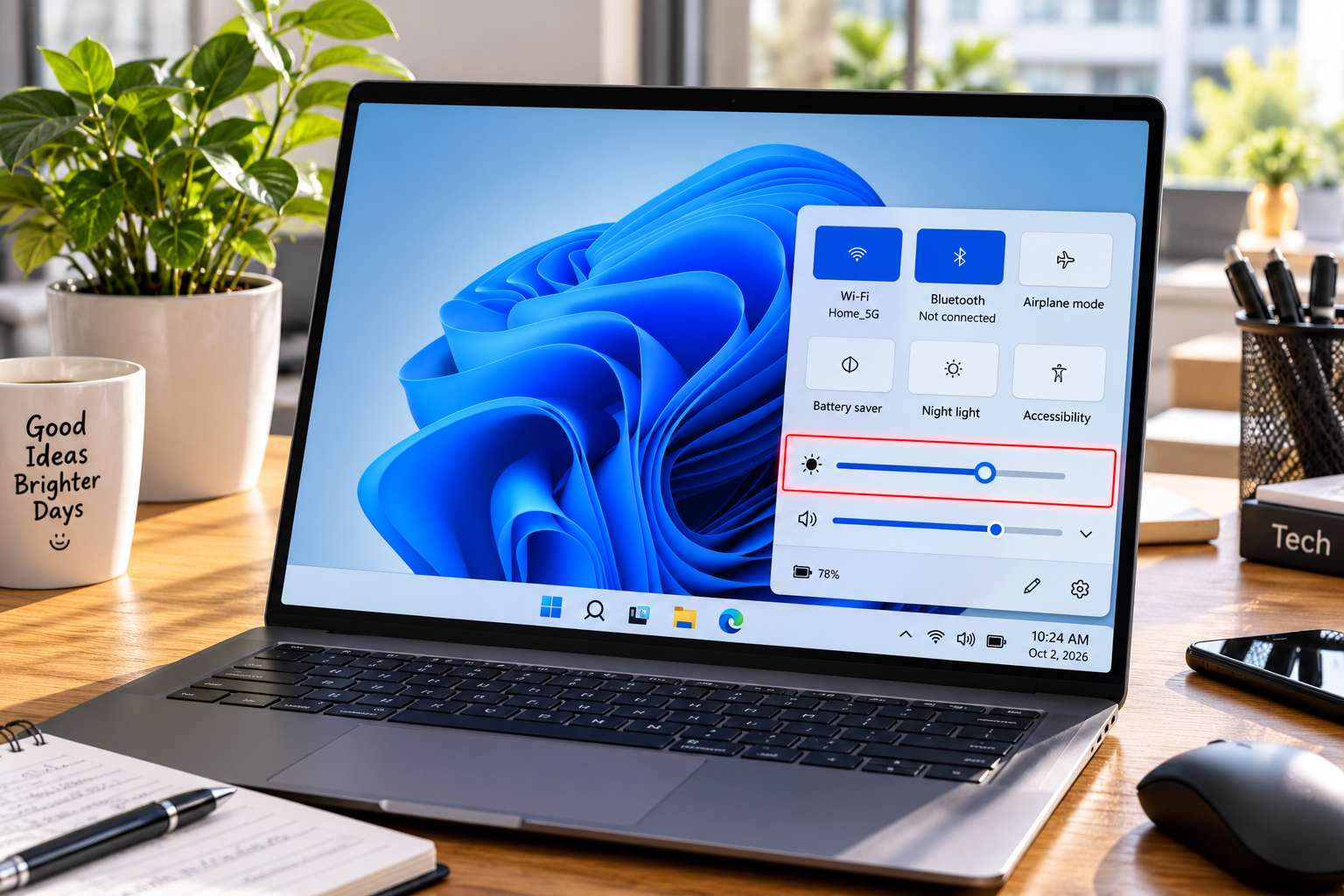
Few computer glitches cause immediate eye strain faster than an uncooperative display. You open your laptop in a dark room expecting to lower the brightness, only to find the brightness slider completely vanished from your Quick Settings menu.
Or worse: the slider is visible, you drag it back and forth from 0% to 100%, but the physical screen remains stuck at full, blinding luminance.
This problem frequently surfaces after a Windows update or display driver refresh. Before assuming your screen backlight or keyboard hotkey is broken, follow this guide to get your brightness slider working again safely.
Why Does the Brightness Slider Disappear?
Windows relies on a handshake between three components to adjust your screen backlight:
- Your Graphics Driver: (Intel Graphics, AMD Radeon, or Nvidia). If Windows Update overwrites this with a generic "Microsoft Basic Display Adapter", brightness control breaks immediately.
- Your Monitor Driver: (Generic PnP Monitor). If this driver gets disabled or corrupted, Windows cannot communicate backlight levels to the display panel.
- Desktop vs. Laptop Differences: Desktop monitors connected via HDMI or DisplayPort do not natively support the Windows taskbar slider without dedicated software.
Re-Enable the Generic PnP Monitor Driver
This is the fastest, non-destructive check. When the monitor driver is disabled, Windows hides the brightness slider to prevent errors.
- Right-click the Start button (or press Win + X) and select Device Manager.
- Find and double-click the Monitors section to expand it.
- Look at Generic PnP Monitor. If you see a tiny downward arrow on the icon, it is disabled.
- Right-click Generic PnP Monitor and click Enable device.
- If it is already enabled, right-click it, select Update driver, choose Search automatically for drivers, and restart your computer.
Expected Result: Press Win + A to open Quick Settings. The brightness slider should reappear at the bottom.
Update or Roll Back Your Graphics Adapter Driver
If your monitor driver is fine, the issue is almost always a graphics driver overwrite. If Windows displays "Microsoft Basic Display Adapter", your graphics card is running in emergency mode.
- In Device Manager, double-click Display adapters.
- Identify your integrated graphics chip (usually Intel UHD/Iris Xe Graphics or AMD Radeon Graphics).
- Right-click your graphics card and choose Properties.
- Click the Driver tab. If the Roll Back Driver button is available, click it. (This undoes the buggy update that broke your brightness).
- If rollback is unavailable, click Update driver ➔ Browse my computer for drivers ➔ Let me pick from a list of available drivers on my computer. Select the manufacturer driver (Intel/AMD) rather than "Microsoft Basic Display Adapter" and click Next.

Adjust Brightness via GPU Command Center (Instant Workaround)
If you need immediate relief while sorting out Windows updates, your graphics card’s native software can bypass Windows Settings entirely.
- For Intel Laptops: Open your Start menu and search for Intel Graphics Command Center. Navigate to Display ➔ Color. You can adjust the Brightness slider directly from here.
- For AMD Laptops: Search for AMD Software: Adrenalin Edition. Head to Gaming ➔ Display ➔ Custom Color and adjust the brightness setting.
Turn Off Windows Fast Startup
Windows 11 includes a feature called "Fast Startup" that saves your system state to a hibernation file on shutdown. If a display driver error occurs during a session, Fast Startup saves that broken state and reloads it every time you turn your computer on.
- Press Win + R, type
powercfg.cpl, and press Enter to open Power Options. - On the left sidebar, click Choose what the power buttons do.
- Click the link that says Change settings that are currently unavailable (requires administrator access).
- Uncheck the box next to Turn on fast startup (recommended).
- Click Save changes and restart your laptop normally.
Using an External Desktop Monitor? Here Is the Real Fix
If you are using a desktop tower PC with an external HDMI or DisplayPort monitor, Windows 11 intentionally omits the brightness slider by design. Microsoft expects you to reach for the physical buttons located under your monitor bezel.
However, you do not have to struggle with awkward physical monitor buttons:
- Install a verified, free open-source utility called Twinkle Tray (available directly in the official Microsoft Store).
- Twinkle Tray utilizes the standard DDC/CI communication protocol built into your HDMI or DisplayPort cable.
- Once installed, it places a clean brightness slider directly in your Windows 11 taskbar tray that controls your external monitor backlights seamlessly.


Frequently Asked Questions
Why did my brightness slider disappear after a Windows update?
Windows updates sometimes replace your manufacturer graphics driver with the generic "Microsoft Basic Display Adapter" or accidentally disable the Generic PnP Monitor driver. Re-enabling the monitor in Device Manager restores it.
Why can't I adjust brightness on my desktop monitor from Windows Settings?
Windows Settings only controls integrated displays (such as laptops, tablets, and all-in-one PCs). External monitors rely on physical monitor buttons or DDC/CI software tools like Twinkle Tray.
What should I do if my keyboard brightness keys (Fn keys) don't work?
Check if the "Fn Lock" key is enabled on your keyboard (often toggled via Fn + Esc). If that fails, install your laptop's hotkey utility (e.g., Lenovo Hotkeys or Asus System Control Interface) from the manufacturer's website.

