Instagram Reels Not Loading? 10 Easy Fixes That Actually Work
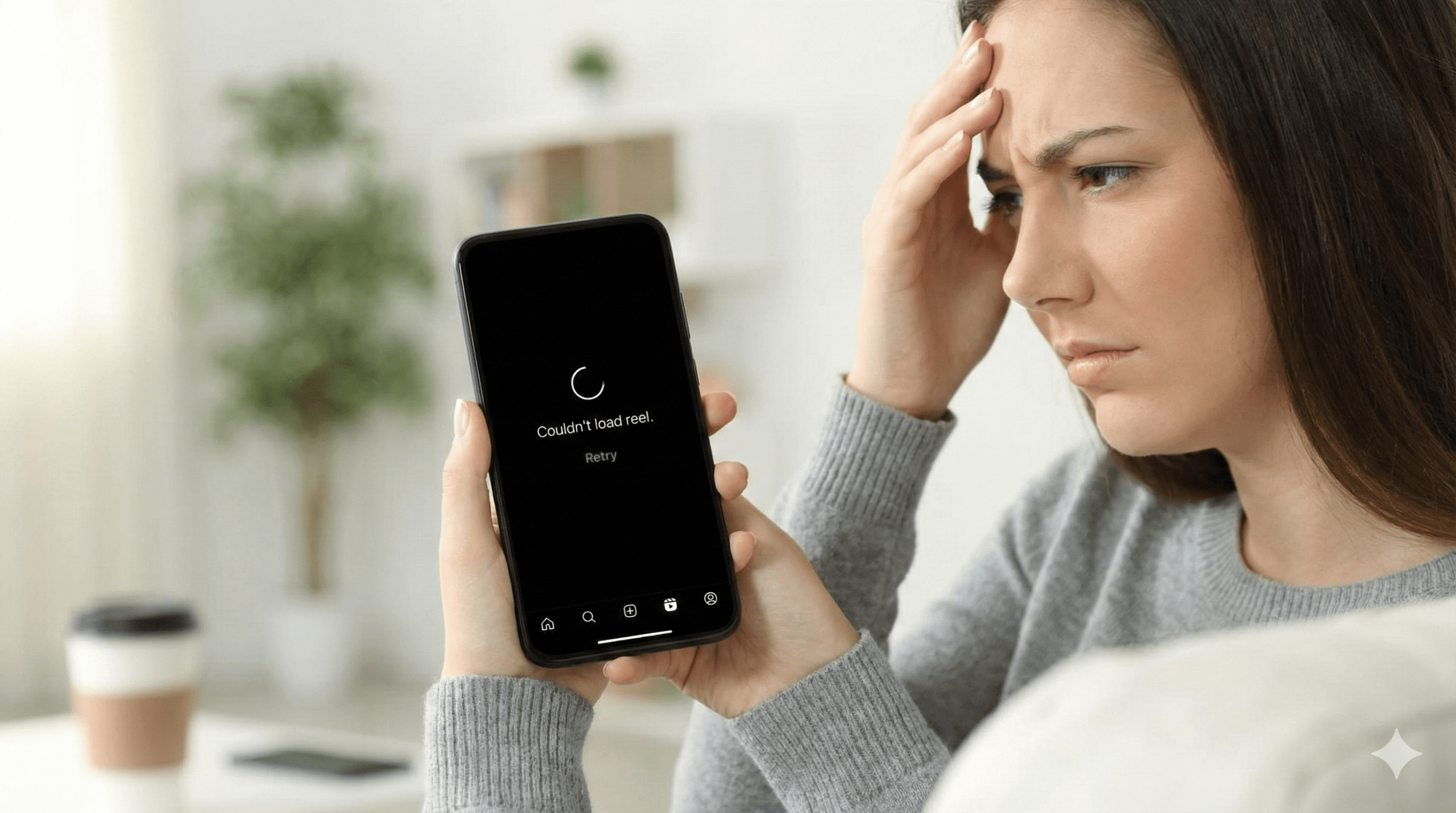
Nothing's more frustrating than tapping on an Instagram Reel only to be met with a black screen, spinning circle, or "Couldn't load reel" error. Before you miss out on trending content or give up posting your own reels, try these 10 proven fixes that work for both iPhone and Android users.
Why Instagram Reels Won't Load: Common Causes
Instagram Reels loading issues usually come from these 6 sources:
- Poor internet connection (Most common - 35% of cases)
- Outdated Instagram app (25% of cases)
- Corrupted app cache/data (20% of cases)
- Instagram server issues (10% of cases)
- Device storage problems (5% of cases)
- Account restrictions (5% of cases)
Start with Fix 1-3 as they solve 80% of Reels loading problems. Work through the list until your Reels are working again.
The 10 Step-by-Step Fixes
Reels require stable internet. Try these connection checks:
- Switch between Wi-Fi and mobile data
- Turn Airplane mode ON for 10 seconds, then OFF
- Restart your router if using Wi-Fi
- Move closer to router for better signal
Pro Tip: Instagram Reels need at least 3 Mbps download speed for smooth playback. Use Speedtest.net to check.

For iPhone:
- Swipe up from bottom (or double-click home button)
- Swipe Instagram app card up to close
- Wait 10 seconds, then reopen Instagram
For Android:
- Open Recent Apps (square button or swipe up)
- Swipe Instagram away or tap Close All
- Reopen from app drawer
Outdated apps cause Reels loading bugs. Update immediately:
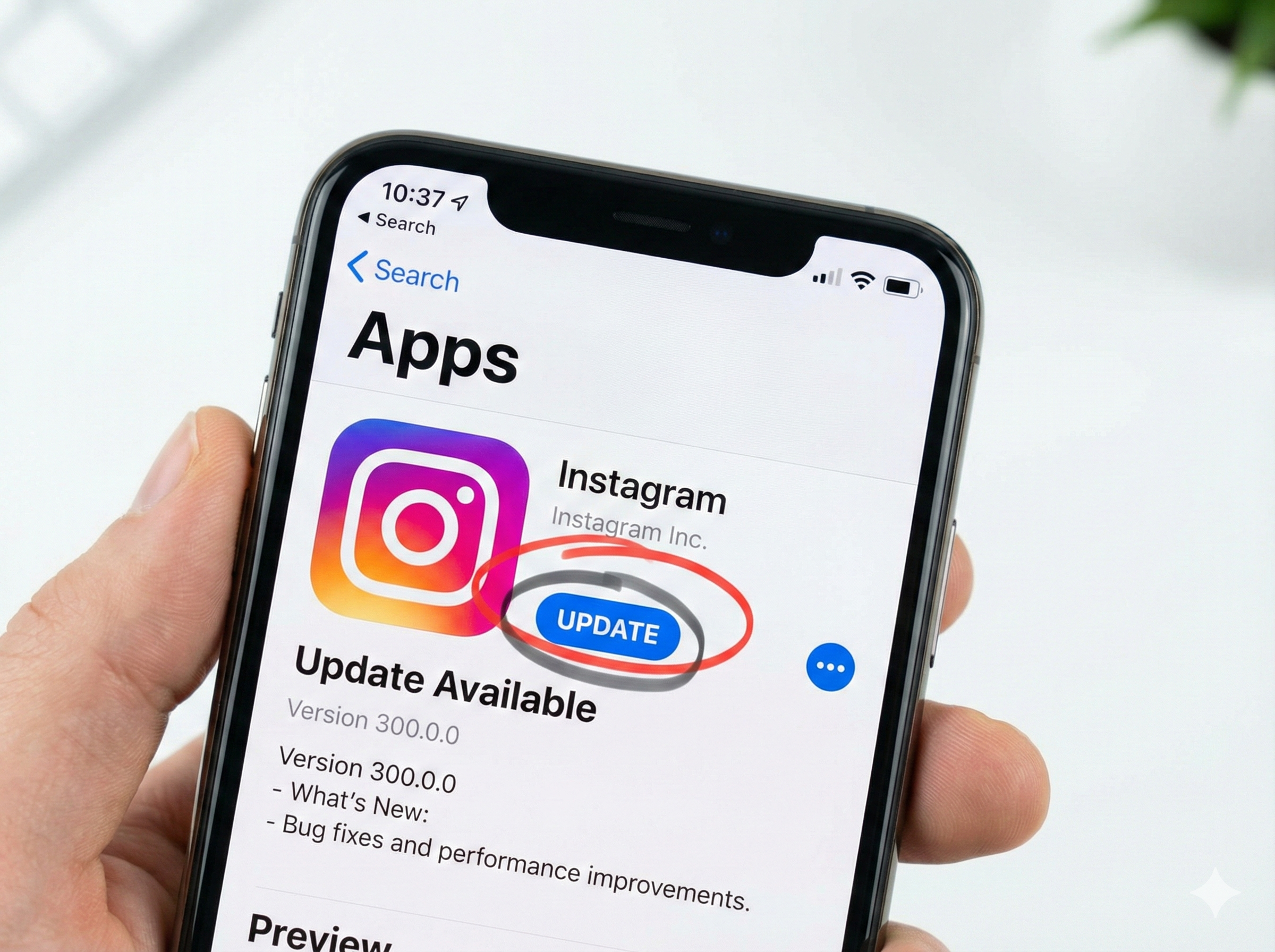
iPhone: App Store → Profile icon → Update next to Instagram
Android: Google Play Store → My Apps → Update Instagram
Note: Instagram releases updates every 2 weeks with bug fixes.
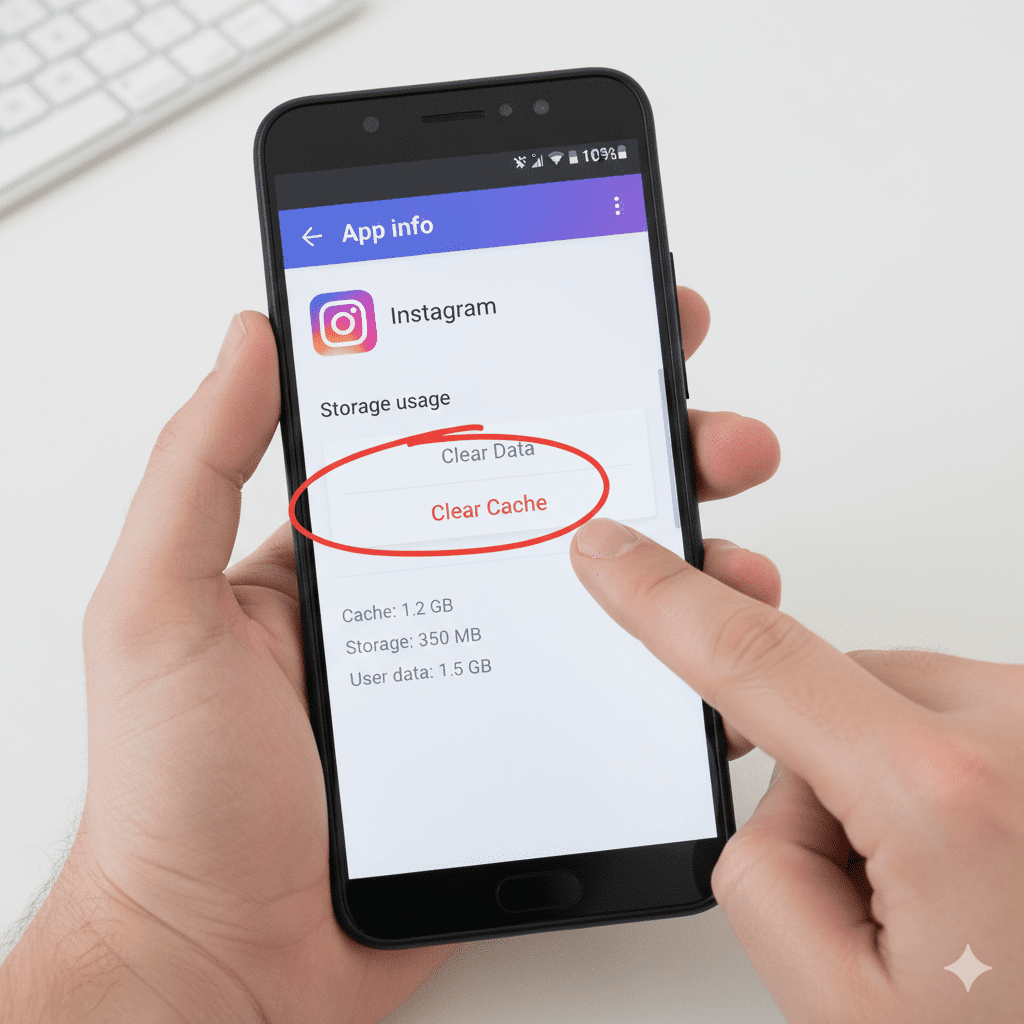
Corrupted cache data prevents Reels from loading properly:
- Go to Settings → Apps → Instagram
- Tap Storage → Clear Cache
- DO NOT tap "Clear Data" (this logs you out)
- Restart Instagram app
For iPhone: Delete and reinstall Instagram (Fix 6) as iOS doesn't allow cache clearing.
When Instagram servers are down, nothing loads. Check:
- DownDetector.com/Instagram (live outage map)
- Twitter: #InstagramDown (real-time reports)
- Instagram's Twitter account (@Instagram)
Fresh installation fixes corrupted files:
- Take screenshot of your login credentials
- Uninstall Instagram from your device
- Restart your phone
- Reinstall from official store
- Log back in and test Reels
Warning: You won't lose DMs or posts, but you'll need to log in again.
Instagram needs 500MB+ free space to cache Reels properly:
Quick cleanup:
- Delete old screenshots
- Clear app caches (Settings → Storage)
- Offload unused apps (iPhone)
- Move photos to cloud storage
Old OS versions conflict with newer Instagram features:
iPhone: Settings → General → Software Update
Android: Settings → System → System Update
VPNs and proxies can block Instagram's servers:
- Open your VPN app
- Disconnect or turn OFF
- Restart Instagram
- Try loading Reels again
Note: Some countries block Instagram. If traveling, this might be intentional.
Instagram might limit features if:
- You violated Community Guidelines recently
- You're using a new account (under 48 hours)
- You've been reported multiple times
- You're using third-party apps
Check: Settings → Account → Account Status to see if you have restrictions.
Still Not Working? Advanced Solutions
If all 10 fixes fail, try these network solutions:
- Change DNS Settings: Use Google DNS (8.8.8.8 and 8.8.4.4)
- Reset Network Settings: Settings → General → Reset → Reset Network Settings
- Try Different Network: Visit cafe with different Wi-Fi
- Contact ISP: Your internet provider might be blocking Instagram
Note: Resetting network settings will erase saved Wi-Fi passwords.
Warning: This logs you out everywhere and resets all settings.
On Android only: Settings → Apps → Instagram → Storage → Clear Data AND Clear Cache → Reinstall.
This is the nuclear option but fixes even the most stubborn Reels issues.
Frequently Asked Questions
Prevention Tips for Future
- Auto-update Instagram (Play Store/App Store settings)
- Weekly cache clearing (Android: Settings → Apps → Instagram → Storage → Clear Cache)
- Keep 1GB free storage on your phone
- Use stable Wi-Fi for Reels creation/viewing
- Restart phone weekly to clear memory leaks
Instagram Reels use more data than regular videos. Connect to Wi-Fi when possible to avoid mobile data throttling.
Still Having Reels Issues?
If you've tried all fixes and Reels still won't load, you might have a deeper device or account issue. Contact our tech community with your phone model and what you've tried for personalized help.
Related Instagram fixes:
• Instagram Posts Not Loading? Fix Guide
• Instagram Stories Not Working - Solutions
• Instagram DMs Not Sending/Receiving
You Might Also Like
Final Thoughts
Instagram Reels loading issues are frustrating but usually simple to fix. Remember this troubleshooting order:
- Connection check (Fix 1)
- App restart (Fix 2)
- App update (Fix 3)
- Cache clear (Fix 4)
- Reinstall (Fix 6)
Most users solve their Reels problems within the first 3 fixes. If you're still stuck after all 10, it's likely an Instagram server issue that requires waiting or a deeper device problem.
Got your Reels working again? Try creating one! The algorithm favors consistent creators. Happy scrolling! 🎬